
Is your business growing but your Wi-Fi signal isn’t keeping up? When your team complains about dead zones in the conference room or slow connections in certain areas, you don’t need to call in expensive consultants.
Daisy chaining routers is a practical, budget-friendly solution that you can implement yourself, even without extensive IT expertise. In this guide, we’ll demystify the process and walk you through expanding your small business network step by step.
What Is Daisy Chaining Routers?
Daisy chain routing involves connecting multiple routers in a sequence to extend your network’s reach. Think of it like adding extra power strips to reach all corners of your office – each router in the chain helps carry your network signal further than a single device could manage alone.

Daisy chaining connects multiple routers in sequence to extend network coverage
For small businesses with 5-50 employees, this approach offers several advantages:
- Extends your network to cover larger office spaces or multiple floors
- Costs significantly less than enterprise-grade networking solutions
- Uses existing equipment or affordable consumer-grade routers
- Can be implemented without specialized IT knowledge
Daisy Chain vs. Alternative Network Solutions
| Solution | Cost | Setup Complexity | Performance | Best For |
| Daisy Chaining Routers | $$ (Additional router) | Moderate | Good | Small offices with basic networking needs |
| Mesh Network | $$$ (Specialized system) | Low | Excellent | Larger spaces needing seamless coverage |
| Wi-Fi Extenders | $ (Cheapest option) | Low | Fair (signal degradation) | Small coverage gaps |
| Enterprise Solutions | $$$$ (Highest cost) | High | Excellent | Large businesses with IT staff |
When Should Your Business Use Daisy Chaining?
Ideal Scenarios
- Multi-floor office spaces where signal doesn’t reach all areas
- Adding new workstations in previously uncovered areas
- Businesses with 5-20 devices needing consistent connectivity
- Budget-conscious operations that can’t justify mesh systems
When NOT to Daisy Chain
- High-density environments (50+ simultaneous connections)
- Businesses requiring enterprise-level security features
- Applications needing guaranteed minimal latency
- When seamless roaming between areas is critical

Optimal router placement in a small business office using daisy chaining
Real-World Small Business Examples
Retail Store

A boutique clothing store used daisy chaining to extend coverage from their main sales floor to their stockroom. This allowed them to implement inventory scanning with tablets throughout the store while maintaining reliable point-of-sale connectivity.
Solution: Two standard routers connected via ethernet cable, with the primary near the checkout and secondary in the stockroom.
Co-Working Space
A small co-working space with 15 desks spread across two connected suites needed consistent coverage throughout. They implemented daisy chaining to ensure all members had reliable connections without investing in expensive enterprise equipment.
Solution: Three consumer routers in a daisy chain configuration, each covering a specific zone within the space.
Medical Clinic
A small medical practice needed to separate their patient Wi-Fi from their secure internal network used for medical records. They used daisy chaining to create two separate networks while extending coverage to all exam rooms.
Solution: Two business-grade routers with the second configured as an access point, maintaining separate SSIDs for staff and patient networks.
How To Daisy Chain Routers: Step-by-Step Implementation
What You’ll Need
- Two or more routers (compatible models recommended)
- Ethernet cables (Cat5e or Cat6 recommended)
- Computer for configuration
- Basic understanding of logging into router admin panels

Equipment needed for daisy chaining routersConnect your computer to the secondary router
Power on your secondary router and connect to it either via Wi-Fi or using an ethernet cable. You’ll need to access its admin panel.Access the secondary router’s settings
Open a web browser and enter the router’s IP address (typically 192.168.0.1 or 192.168.1.1, check your router documentation). Log in with the admin credentials.Disable DHCP on the secondary router
Find the DHCP settings in your router’s admin panel and disable this feature. This prevents IP address conflicts, as your primary router will handle all IP assignments.
Disabling DHCP on the secondary router prevents IP address conflictsAssign a static IP to the secondary router
Give your secondary router a static IP address within the same subnet as your primary router but outside its DHCP range. For example, if your primary router uses 192.168.1.1, you might set the secondary to 192.168.1.2.Connect the routers with an ethernet cable
Run an ethernet cable from a LAN port on your primary router to a LAN port (not the WAN/internet port) on your secondary router.
Connect LAN port to LAN port between routers (not the WAN/Internet port)Configure wireless settings
For seamless coverage, set both routers to use the same SSID (network name) and password, but different channels to avoid interference.Test your connection
Connect devices to your network and test connectivity throughout your space. Verify that devices can connect to either router and maintain internet access.
Important Security Note: When daisy chaining routers, your network is only as secure as its weakest link. Make sure to update firmware on all routers and use strong, unique passwords for all admin panels.
Troubleshooting Common Issues
Why can’t devices connect to the secondary router?
This is often caused by incorrect IP configuration. Verify that:
- DHCP is disabled on the secondary router
- The secondary router has a static IP in the correct subnet
- You’re connecting LAN port to LAN port between routers
Why is my connection speed slower on the secondary router?
Some speed reduction is normal with daisy chaining. To minimize this:
- Use high-quality ethernet cables (Cat6 recommended)
- Position routers to minimize physical barriers
- Use the same model routers when possible
- Limit your chain to 2-3 routers maximum
Why do devices keep disconnecting when moving around the office?
This happens when devices struggle to transition between routers. Try:
- Using identical SSIDs and passwords on all routers
- Setting routers to different, non-overlapping channels
- Positioning routers for overlapping coverage zones
Setting routers to non-overlapping channels (1, 6, 11) reduces interference
Recommended Equipment for Small Businesses
While daisy chaining works with most router models, these options offer the best balance of performance, features, and value for small businesses:
Budget-Friendly Option

TP-Link Archer A7
Best Value
- Dual-band AC1750
- 4 LAN ports
- Easy setup interface
- Perfect for businesses with 5-15 devices
Price Range: $60-80
Mid-Range Performance
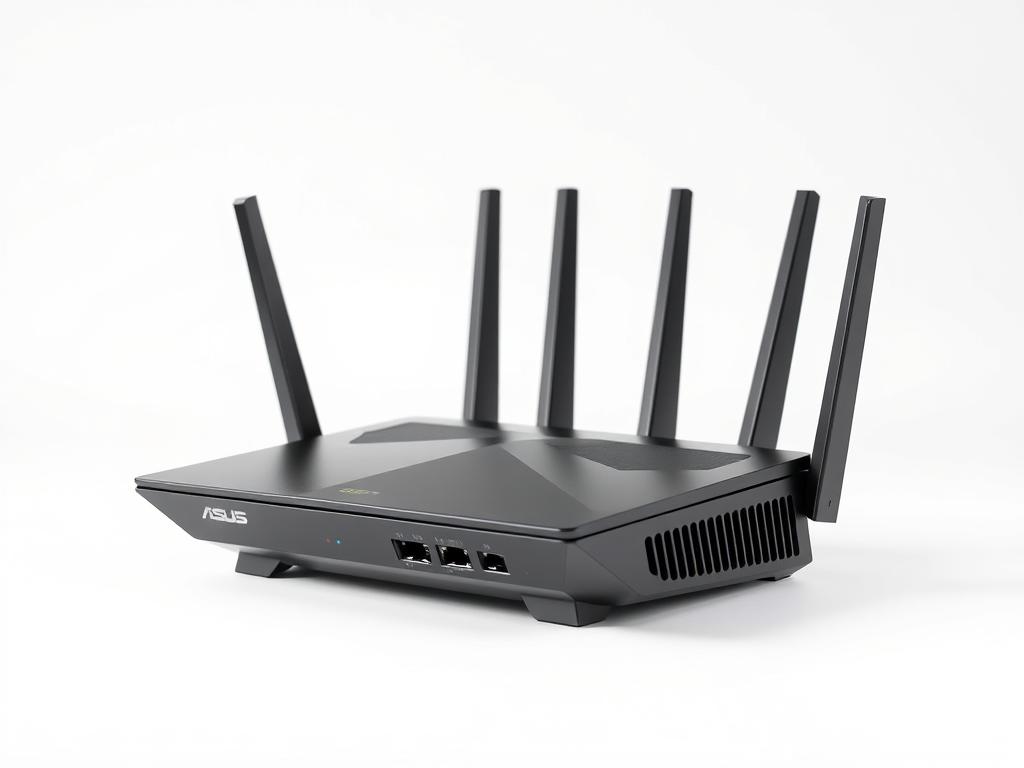
ASUS RT-AC68U
Most Reliable
- Dual-band AC1900
- Advanced QoS features
- AiMesh compatible
- Ideal for businesses with 15-25 devices
Price Range: $120-150
Business-Grade Solution

Netgear Nighthawk Pro XR500
Most Features
- Dual-band AC2600
- Advanced security features
- Network monitoring tools
- Perfect for businesses with 25+ devices
Price Range: $200-250
Expanding Your Network: Next Steps

Daisy chaining routers offers a practical, cost-effective solution for small businesses looking to expand their network coverage without complex infrastructure changes. By following the steps outlined in this guide, you can create a reliable network that grows with your business needs.
Remember that your network is a critical business asset. As your business grows, periodically reassess whether daisy chaining still meets your needs or if it’s time to consider more scalable solutions like managed switches or mesh networks.

- Power Management for Networks: Essential Guide for Small Business Infrastructure - September 9, 2025
- Zero Trust Network Architecture for Small Businesses: An Implementation Roadmap - August 26, 2025
- SD-WAN for Small Business: A Complete Guide - August 26, 2025